[ English | 日本語 ]
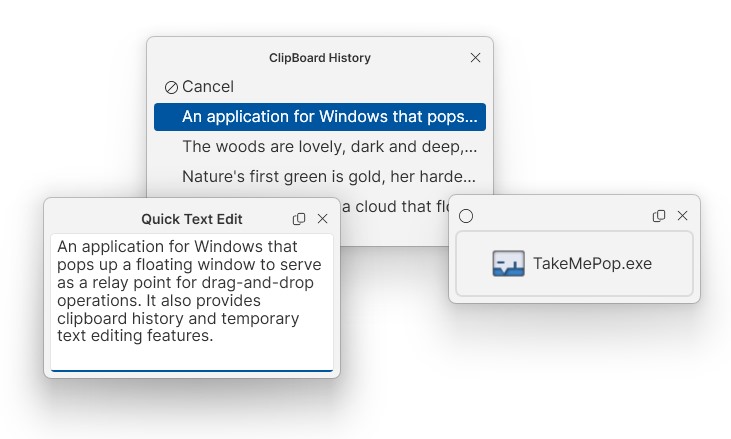
An application for Windows that pops up a floating window to serve as a relay point for drag-and-drop operations. It also provides clipboard history and temporary text editing features.
When launched, it runs in the system tray. To quit, right-click the tray icon and choose Exit. You can customize its behavior in Settings.
Download it from the releases page or install it via Scoop.
# Install
scoop bucket add hetima https://github.com/hetima/scoop-bucket
scoop install hetima/TakeMePop

# Launch
TakeMePop

# Update
scoop update hetima/TakeMePop
This application requires the .NET 10 Desktop Runtime. If it is not installed, install it from here or run the following command:
winget install Microsoft.DotNet.DesktopRuntime.10
A small window for temporarily holding files or text.
- Shown via a global shortcut, even while dragging.
- Press Ctrl+C twice to show a panel with the copied files. You don't even need to start dragging.
You can drop directly onto the panel, which replaces its contents. Once a drag-and-drop from the panel to another location completes, the panel closes (it may not close for applications such as Explorer where detecting a completed drop can be ambiguous).
Press the round button at the top-left of the panel to toggle pinning. While pinned, the panel no longer closes automatically. Normally, one panel is reused. Pinned panels are kept, so you can open multiple panels.
A small window for temporarily holding and editing text. It's handy when you want to make small edits while typing in a chat app, for example.
- Shown via a global shortcut.
- Press Ctrl+C twice to show a panel holding the copied text.
A small window that shows the 4–10 most recent clipboard entries. Hold the configured modifier key and press the trigger key to show and select an entry; releasing the modifier key pastes the selected entry. It can also be configured to use a more conventional flow: show it with a shortcut, then click an entry to copy it.
This feature reduces mistakes such as "I meant to click but it turned into a drag, and I dropped the item into the adjacent folder." When a drag begins, it briefly shows a transparent window around the mouse pointer. This prevents the item from being dropped elsewhere. In Preferences you can fine-tune the window size, how many pixels of movement triggers it, how long it stays visible.
- Supported OS: Windows 11
- Written in C# with .NET 10 and WPF
MIT License
